 iTunes Hints & Tips
Grouping Tracks Into Albums
iTunes is a powerful media manager but it has a few organisational quirks, some visible directly in the iTunes interface, others that only become apparent when you use iTunes to put content on your iPod/iPhone/iPad and yet more which may only present problems as your library grows. The aim of this article is to briefly explore the different factors that lead to anomalies such as split albums and suggest ways to organise your media tags so that your library is neatly presented and easy to explore.
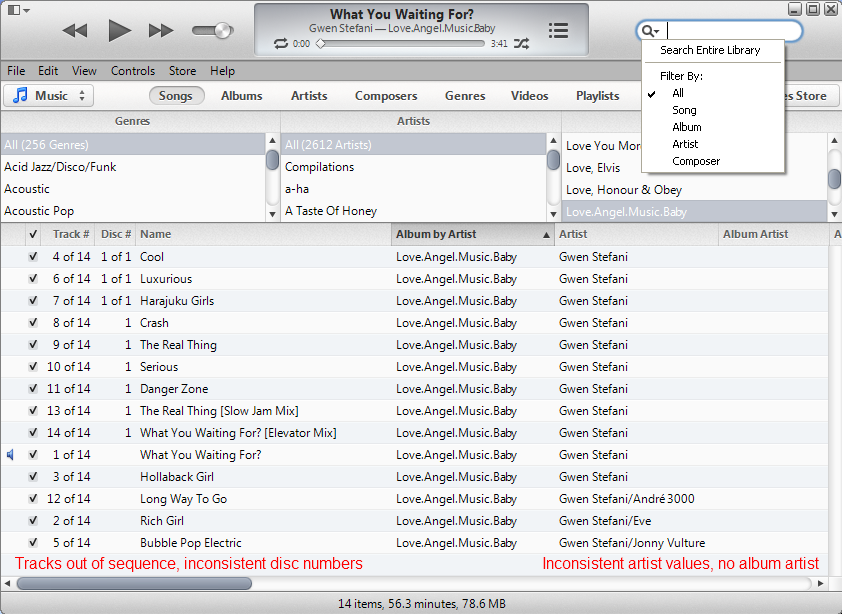
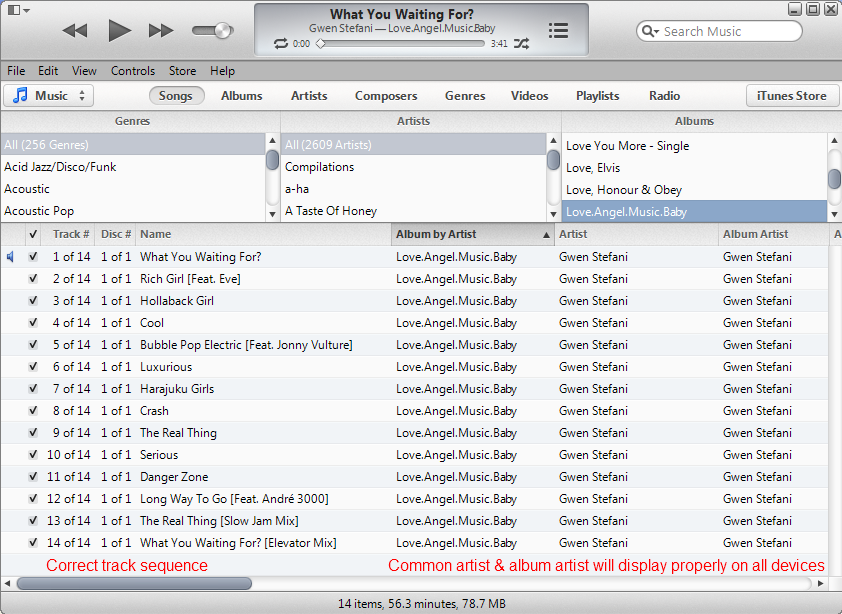
In certain views iTunes will let you sort music on different columns, some of which are unlikely to group albums together or put the tracks in their normal play order. With iTunes 11 when viewing the library in the Songs or Playlist views for playback you will generally want to sort things on the Album column organized as Album by Artist in ascending order. When trying to gather related tracks together having it set to Album may sometimes work better. To change which column is used for sorting click on the heading of it. For the Album column clicking again on the text will cycle through the options Album, Album by Artist and Album by Artist/Year. Clicking on the small black triangle in the active column will reverse the order of the list. You'll normally want this pointing upwards. To add or remove columns from the list right-click (Win) or command-click (Mac) on the row of headings to see options.
For rapidly scanning through the albums to see which may need attention use the Songs view, sorted as Album by Artist and enable the Column Browser from the View menu. Make sure the Albums column is enabled in the browser, select the first album, then use the down arrow key to select each album in turn looking for albums which need tweaking with one of the techniques below, such as albums with more than one artist, or where the tracks are out of sequence.
You may also want to make use of the search box. In iTunes 11 this has been geared towards a tool for selecting tracks to add to the new Up Next feature, or to a playlist, but for organizing your tags the previous filtering function is more useful. Enable this by clicking the small magnifying glass and unticking Search Entire Library. You may also want to tick other options there to narrow down a search.
Once you have focused on an album that is causing problems use the Get Info dialog (CTRL+I or CMD+I) to edit either individual tracks or select all the tracks of the album and edit common properties at the same time. (Note you can use combinations of SHIFT & CTRL click to extend a selection.)
One cover, too many tracks
The iPod (and iTunes to a lesser extent) conflates two or more albums with the
same title, most obviously with
Greatest Hits. On the iPod this can result in one album acting as a
combination of two or more. Selecting any cover gives all the tracks of all
albums with the same title. See below how selecting either of two distinct
albums with the same title gives a track listing which is a combination of both
albums The workaround for this "Greatest Hits" bug is to give each album a
unique title - I tend to go for Album - Album Artist as this reads
clearly in the iTunes browser. Alternatively you could use the wording as it
appears on the cover or append different numbers of spaces for each different
album. Somewhat oddly, setting different values for Sort Album doesn't work.
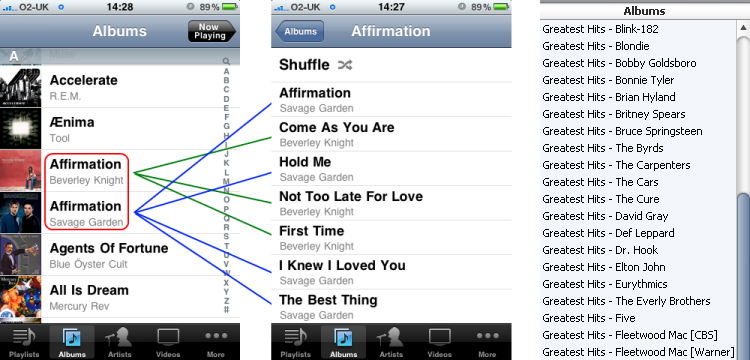
N.b. The images above are for the V3.x firmware - iOS 4 actually manages to discriminate between the two albums and lists only the tracks of the selected album when using the Albums menu. However all the tracks will still be returned if you access the album via search, including voice. So, until Apple roll out a complete fix for the iPhone, similar fixes for older devices, and indeed iTunes itself, the workaround given may still present the best approach and will still be needed if an album name has been reused by the same artist, e.g. different "Greatest Hits" albums released for a band by different labels.
Missing Artist or Album not with others
by same artist
iTunes relies on the Gracenote CDDB database when identifying CD's. This often
marks collections or anthologies of an artist's work as a compilation. It also
seems that the iTunes Store may mark an album as a compilation in order to keep
it grouped when there are tracks with guest or featured artists. However, the
compilation flag has the logical function of grouping together tracks with the
same album name, but different artists on each track, e.g. "Now That's What I
Call Metal 666!". These compilations are then all grouped together at the end of
cover flow. Most of us would expect "Greatest Hits" albums to be listed with the
other albums by the same album artist. For albums which are essentially by a
single album artist or group it is best to set the appropriate value for the
Album Artist and then set
Part of a compilation to No.
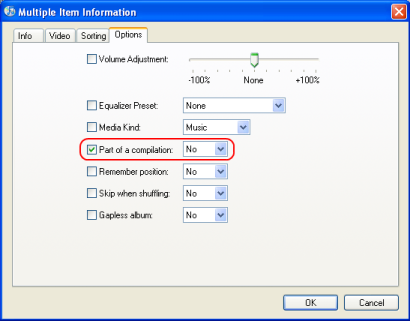
If, however, you simply want to make sure that you can see all your artists, including those who only appear on Compilations then, in iTunes, turn off the option to Group compilations in preferences (iTunes 8 & earlier) or turn off View > Column Browser > Group Compilations & View > Column Browser > Use Album Artists (iTunes 9 & later) and on an iPod Classic turn off Settings > Main Menu > Compilations & Settings > Music Menu > Compilations.
N.B. If you have the Use Album Artists feature enabled and edit the Album Artist or Sort Album Artist values you may find that the artist's position in the list isn't changed until you close & reopen iTunes. In addition if you change the Compilation status of tracks they may be temporarily treated as tracks from an Unknown Album, again things should resolve themselves if you close and reopen iTunes.
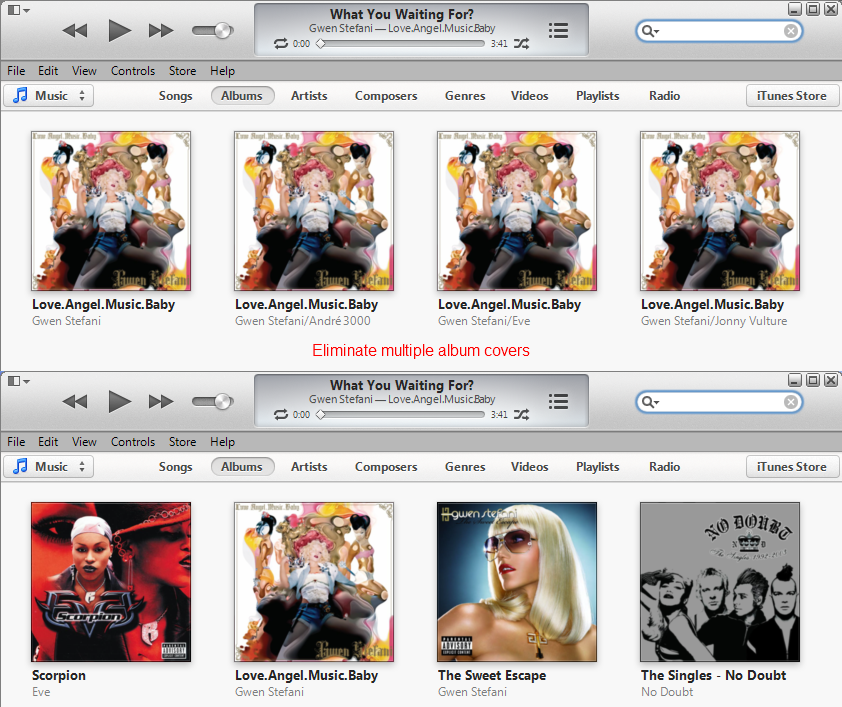
One album, too many covers
For true compilations, where each track is by a different artist, the answer is
to set
Part of a compilation to Yes and enable the
iTunes preference to
Group compilations when browsing. N.b. since iTunes 9.1 this preference
is controlled using View > Column Browser > Group Compilations.
If the album is not a compilation however, any tracks which list guest
artists may be treated as separate items. Filling in the Album Artist
field is enough to link things in iTunes. Sadly, however, most iPod models
ignore the Album Artist field when grouping albums so this is only a partial
solution. You can simply mark the entire album as a compilation which seems to
be the way iTunes often handles it, however that's not an ideal fix. Short of
waiting for Apple to address this issue (and as far as I can tell it goes back
to the 1st gen. of iPods) we need a workaround. What I do is to put any
additional artist info. in square brackets after the song name. E.g.
Track [Feat. Guest] and then set Artist=Album Artist for each
track. For anthologies where the Album Artist is credited as part of another
group, e.g. for Cream tracks on an Eric Clapton anthology, I use
Track [As Group]. For a track where the main Album Artist doesn't receive
a credit, e.g. the first track of the Slim Shady LP credited to Jeff Bass, I
just set the track name to
Track [Guest] while still setting the artist to the album artist. N.b. I
use square brackets to indicate that this is information about the track as
distinct from parentheses in the song title and also use this style for
Mix/Live/Bonus info.
Since firmware version 3.x the iPhone & iPod Touch do in fact use the Album
Artist field & have stopped grouping on the part of a compilation setting,
however setting both Part of a compilation to Yes
and the
Album Artist to "Various Artists" will group
compilation albums both in iTunes and whichever type of iPod/iPhone you happen
to be using. The artists menu on the iPhone & iPod Touch also enumerates all the
different values of the Artist field so if you select an album where some of the
tracks feature guests via the Artists menu then you will only get a subset of
the tracks from the album. Therefore it may still be best to implement the
Track [Feat. Guest] and Artist=Album Artist workaround to avoid
some clutter in the Artists menus and make it easier to listen to complete
albums. N.b. iTunes 9.1 introduced an option under the View > Column
Browser menu to Use Album Artists which will declutter
the Artist browser pane, however until this change is reflected in all iPod
firmware the workaround may still provide the best approach.
From iOS 5 there is an option under Settings > Music > Group By Album Artist which finally makes it practical to leave guest/feat. artist information in the Artist field, provided you don't plan to put your media on older devices which don't support Album Artist.
One album, still too many covers
The Sort Artist, Sort Album & Sort Album Artist fields can be used to override
the normal sort order. For example iTunes automatically drops leading articles
(a/an/the) so "The Beatles" are arranged under "B" instead of "T". Occasionally
different tracks from the same album can have different values in these sort
fields which can also break up the grouping. Making the sort columns visible in
iTunes can help with spotting & correcting such problems.
Tried that, there are STILL too many
covers!
iTunes may split albums into two or more sections if some tracks from the album
have different values for Artist, Album Artist, Album, Sort Artist, Sort
Album Artist, Sort Album, No. of Discs or Part of a Compilation.
Tiny differences such as trailing spaces, accented characters or variants of
symbols can sometimes be quite hard to spot. The iPod is also more sensitive to
case variations and may split, duplicate or reorder an album that looks okay in
iTunes. Normally overtyping the desired value for each shared field will
complete the grouping of the album into one entity. Occasionally, however, this
method seems to fail. When this happens I've found that you can force every
field to update properly by adding some extra text - e.g. a trailing X,
which once applied seems to complete the joining of the tracks into one album.
Once this has happened the extra data can be removed and the album should remain
properly grouped.
A worked example...
Multiple tags
The ID3 specifications allow files to have multiple tags in different
versions and languages, but iTunes only works properly with single tags. When
multiple tags are present it can sometimes fail to apply updates to the tag that
it reads back (presumably updating one of the others in the file) and it is also
possible that iPod & iTunes may have different rules for which tag they give
priority to. This could lead to situations in which everything is properly
organised in iTunes but then inexplicably falls apart on an iPod. There are 3rd
party tag editors that can manipulate multiple tags but I don't have a
recommendation offhand. A workaround in iTunes is to use right-click context
menu Convert ID3 Tags... > None a few times to remove all
existing tags and then Convert ID3 Tags... > v2.3
to build a fresh tag with the information still held in the iTunes database.
I've read in the past that iTunes isn't fully compliant with the v2.4 spec.
although this may no longer be the case, however support for v2.3 is widespread
so I would suggest using v2.3 over v2.4.
One cover for multi-disc album
Multi-disc albums are often listed as Album (CD1) for CD 1, Album
(CD2) for CD 2 etc. To display these properly using just one cover, each
disc should have the correct
Disc X of Y values set, and then the entire album should be given the
single title
Album. Being somewhat obsessive I also renumber the tracks sequentially,
working backwards from the last track (so that no two tracks ever have the same
number) until I reach disc 1. You can still give tracks from the individual
discs different artwork should it be relevant so that the correct artwork will
be displayed as the album progresses. I've also written a (Windows only) script
called
AddToTrackNumber which can help with
the renumbering aspect. The script
SingleFromDouble
should do something similar for Mac users.
Tracks out of sequence
Check that all tracks have the same/correct disc no. For a single disc album
this should be either blank or 1 of 1. iTunes will sort tracks with a disc no.
of 1 before those that are blank. Just for fun the iPod sorts them the other way
around so an album that is correct in iTunes may be out of sequence on an iPod
or vice-versa. In addition ensure that the Artist, Album Artist, Album, Sort
Artist, Sort Album Artist & Sort Album fields are consistent across all tracks.
One artist, many names
With some artists, particularly classical composers, you should be aware of
alternative representations of their names. E.g. 2Pac vs. Tupac. The menus will
work best if for each artist you standardise on just one form of their name.
E.g. make a choice between Mozart, W.A. Mozart or Wolfgang Amadeus Mozart, and
then apply it consistently. For classical music I tend also to use the Composer
as the Artist & Album Artist and either discard the performer details or place
these into the Comments field. In some cases the Sort Artist/Sort Album Artist
fields can group alternate forms in iTunes but these will break up again on the
iPod. It is best therefore to use Artist & Album Artist consistently so the name
is shown the way that you want and Sort Artist & Sort Album Artist to control
where it is displayed.
Steve MacGuire aka turingtest2